Windows Firewall Control Free Download – Features, Installation & Guide
If you want easier control over Windows Firewall rules without constantly navigating through Windows security settings, Windows Firewall Control is a useful utility to consider. It extends the functionality of the built-in Windows Firewall and provides a convenient interface for managing firewall rules, notifications, filtering modes, and connection activity.
If you are searching for a Windows Firewall Control free download, the current version is available as freeware through the official BiniSoft/Windows Firewall Control website. The official site currently lists version 6.32.0.0, dated May 1, 2026.
Windows Firewall Control Free Download
Windows Firewall Control is designed to make the native Windows Firewall easier to manage. It does not replace the Windows Firewall engine. Instead, it provides an additional interface and features that make controlling Windows Firewall rules more convenient.
The software is currently available free of charge, and the official FAQ states that the latest version is freeware and does not require activation.
For the safest installation, download the program from the official source rather than using modified or unofficial packages.
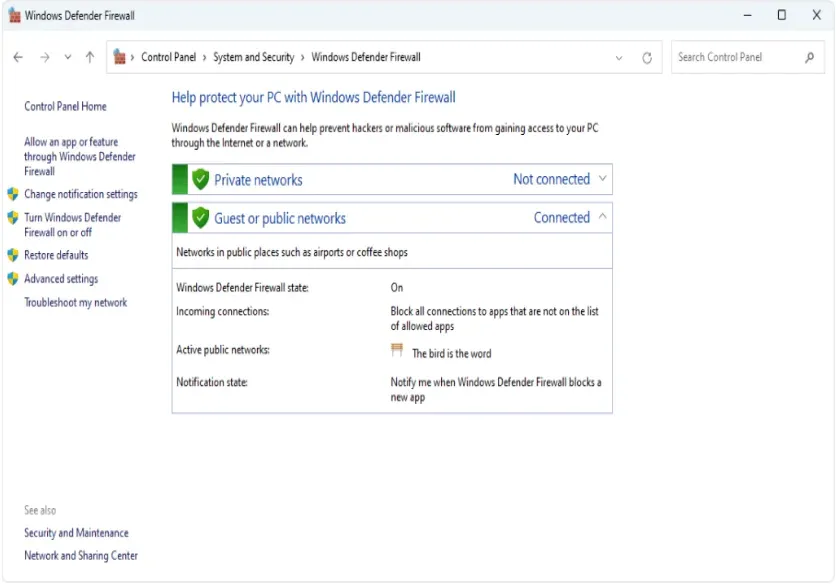
What Is Windows Firewall Control?
Windows Firewall Control is a Windows utility that extends the functionality of Microsoft's built-in Windows Firewall.
It runs from the system tray and gives users quick access to common firewall functions. Instead of manually navigating through several Windows security menus, users can manage firewall behavior and rules from a centralized interface.
An important point is that Windows Firewall Control is not a standalone firewall. The actual filtering is performed by Windows Firewall using its existing firewall rules.
Key Features of Windows Firewall Control
Easy Firewall Management
The application provides a more accessible interface for controlling Windows Firewall settings and rules.
Outbound Connection Notifications
Windows Firewall Control can notify you when outbound connections are blocked, allowing you to decide whether a program should be permitted to communicate.
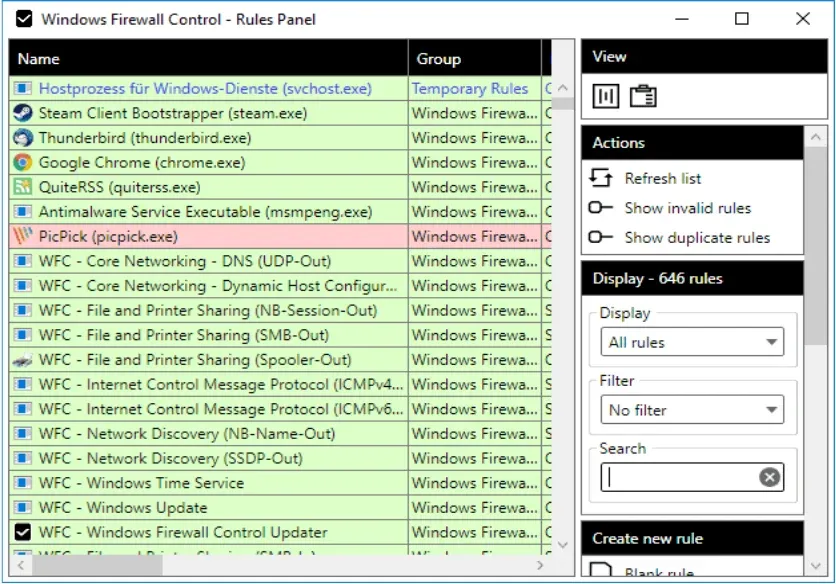
Firewall Rule Management
You can create, modify, and delete Windows Firewall rules directly through the application's interface.
Temporary Rules
The software supports temporary firewall rules that can automatically disappear after they expire or when the application restarts.
Learning Mode
Learning mode can automatically allow digitally signed applications according to the software's configuration. This can reduce the number of manual decisions required during initial setup.
Rule Protection
Windows Firewall Control includes functionality designed to prevent other programs from tampering with Windows Firewall rules and state.
Duplicate Rule Detection
The application can find duplicate firewall rules and provides options for managing or merging similar rules.
Connection History
Users can view recently allowed and blocked connections and create rules based on information recorded in the Windows Security log.
Import and Export
Windows Firewall Control supports importing and exporting partial sets of firewall rules, which can be useful when moving configurations between systems or keeping backups.
How Windows Firewall Control Works
Windows Firewall Control acts as a management layer for the native Windows Firewall.
When a program attempts to make a network connection, Windows Firewall evaluates its rules. Windows Firewall Control provides a simpler way to configure those rules and monitor certain connection activity.
This distinction is important because the application itself does not perform packet filtering. Windows Firewall remains responsible for allowing or blocking traffic.
Windows Firewall Control Filtering Modes
The software provides four main filtering modes.
High Filtering
High Filtering blocks inbound and outbound connections that are not explicitly permitted by firewall rules. This is a strict configuration intended for users who understand the consequences of blocking network traffic.
Medium Filtering
Medium Filtering blocks outbound connections that do not match an existing rule. Programs need appropriate firewall rules before they can initiate outbound connections.
Low Filtering
Low Filtering allows outbound connections that do not match a rule. Users can then create rules for applications they specifically want to block.
No Filtering
No Filtering turns off Windows Firewall filtering. The official documentation advises avoiding this mode unless another firewall is running.
For most users, changing filtering levels should be done carefully because overly restrictive settings can prevent legitimate Windows services and applications from working correctly.
Managing Windows Firewall Rules
Firewall rules determine how Windows handles network connections.
With Windows Firewall Control, users can:
Create new rules
Modify existing rules
Delete unnecessary rules
Review existing rules
Find duplicate rules
Merge similar rules
Create temporary rules
Import and export rule sets
Create rules from connection logs
A good practice is to create rules only when there is a clear reason to do so. Unnecessary firewall rules can make troubleshooting more complicated.
How to Download Windows Firewall Control
To download Windows Firewall Control safely:
Open the official Windows Firewall Control website.
Review the current version and release information.
Select the official download option.
Save the installer to your computer.
Verify that the file came from the legitimate source.
Run the installer after checking your Windows security settings.
The official website currently lists version 6.32.0.0 and provides download mirrors in addition to its main download.
Avoid unofficial versions advertised as cracked, patched, or modified.
How to Install Windows Firewall Control
Installation is generally straightforward.
Step 1: Download the Installer
Obtain the latest version from the official source.
Step 2: Run Setup
Open the downloaded installer and follow the setup instructions.
Step 3: Allow Required Permissions
The official documentation states that elevated privileges are required during installation, while standard user accounts can be supported during normal use.
Step 4: Complete Installation
Finish the setup process and launch Windows Firewall Control.
Step 5: Configure Your Preferences
Review the filtering mode, notification settings, firewall rules, and other available options.
How to Use Windows Firewall Control
After installation, Windows Firewall Control normally runs from the system tray.
A basic workflow is:
Open the Windows Firewall Control interface.
Review the current filtering mode.
Select an appropriate filtering level.
Monitor notifications about blocked connections.
Create rules for trusted applications when necessary.
Review connection history.
Remove obsolete or duplicate rules periodically.
If an important application suddenly loses network access, check its firewall rules before changing other Windows networking settings.
Windows Firewall Control System Requirements
The official website currently lists support for Windows 11, Windows 10, Windows 8.1, Windows 8, Windows 7, and several Windows Server versions, including Server 2025, 2022, 2019, 2016, and 2012. Both x86 and x64 versions are listed as supported.
Requirement | Details |
|---|---|
Operating System | Windows 7 through Windows 11 |
Windows Server | Server 2012 through Server 2025 |
Architecture | x86 and x64 |
Framework | .NET Framework 4.8 |
Windows Firewall | Must be enabled |
DNS Client | Required for notifications |
Event Log | Required for logging functionality |
The current user guide also explains that Windows Firewall, Windows Event Log, and DNS Client services are required for different parts of the application's functionality.
Is Windows Firewall Control Free?
Yes. The current version of Windows Firewall Control is freeware. The official FAQ states that the latest version does not require activation.
This makes it different from software that offers only a limited trial before requiring payment.
However, Windows Firewall Control is an additional management utility. Windows already includes its own firewall functionality, so users do not need this application simply to have basic firewall protection.
Is Windows Firewall Control Safe?
Windows Firewall Control is designed to work with the native Windows Firewall rather than replacing it. The official documentation explains that Windows Firewall performs the actual connection filtering.
For safer use:
Download from the official website.
Keep Windows security features enabled.
Avoid modified or cracked installers.
Review firewall rules before deleting them.
Avoid disabling the Windows Firewall without a suitable replacement.
Back up important firewall configurations.
Make changes gradually if you are unfamiliar with firewall rules.
Windows Firewall Control vs Windows Defender Firewall
Windows already provides Windows Defender Firewall as part of the operating system.
Windows Firewall Control adds a more convenient interface and extra management functionality. This can make tasks such as viewing rules, responding to outbound notifications, creating temporary rules, and reviewing connection information easier.
Feature | Windows Defender Firewall | Windows Firewall Control |
|---|---|---|
Built into Windows | Yes | No |
Firewall engine | Yes | Uses Windows Firewall |
Rule management | Yes | Easier interface |
Outbound notifications | Limited by default | Available |
Filtering profiles | Yes | Quick switching |
Temporary rules | Manual/configuration dependent | Supported |
Connection history tools | Available through Windows | Integrated access |
Additional interface | Standard Windows tools | Dedicated system-tray interface |
Windows Firewall Control should therefore be viewed as a management and convenience layer rather than a replacement for Windows Firewall.
Windows Firewall Control and Privacy
A firewall can help control which applications are allowed to communicate over a network.
For example, users may want to review outbound connections from applications they do not recognize or no longer use. Windows Firewall Control makes these rules easier to inspect and manage.
However, blocking an application can cause legitimate features such as updates, cloud synchronization, licensing, or online services to stop working. Always understand what a rule does before applying it.
Common Windows Firewall Control Problems
An Application Cannot Access the Internet
Check whether Windows Firewall has a blocking rule for the application. Review the relevant inbound or outbound rules and adjust them only if you trust the program.
Too Many Notifications
If you use a strict filtering configuration, many applications may generate connection requests. Reviewing the available filtering and notification settings can reduce unnecessary prompts.
Windows Services Stop Working
Some Windows services require network access. If an important feature stops functioning after changing firewall settings, review recently modified rules.
Firewall Control Does Not Start
Check that the required Windows Firewall service and other required services are running. The application depends on Windows Firewall being enabled.
Notifications Do Not Work Correctly
The official documentation states that the DNS Client service is required for the notification system to work properly.
Windows Firewall Control After Windows Updates
Windows updates can change system components, networking behavior, or firewall rules.
After a major Windows update, check that:
Windows Firewall remains enabled.
Your important firewall rules still exist.
Trusted applications can connect normally.
Windows services are functioning.
Your version of Windows Firewall Control remains compatible.
If a problem appears after an update, review recently changed rules before making extensive configuration changes.
Windows Firewall Control Alternatives
Several alternatives can provide different approaches to Windows network management.
Windows Defender Firewall
The built-in Windows firewall is sufficient for many users and requires no additional software.
SimpleWall
SimpleWall is a lightweight Windows tool for configuring Windows Filtering Platform activity and provides an alternative approach to managing network connections.
GlassWire
GlassWire focuses on network monitoring and provides additional visibility into application network activity.
Fort Firewall
Fort Firewall is an open-source Windows firewall utility that offers firewall management and traffic-related features.
The right choice depends on whether you need basic firewall management, connection monitoring, application-level control, or additional network features.
Tips for Using Windows Firewall Control
Keep these recommendations in mind:
Start with a moderate filtering configuration.
Learn what a firewall rule does before changing it.
Avoid blocking essential Windows services.
Review rules periodically.
Remove obsolete rules when appropriate.
Keep Windows security features enabled.
Back up important configurations.
Test changes one at a time.
Download updates from legitimate sources.
Avoid disabling the firewall without a suitable alternative.
Frequently Asked Questions
Is Windows Firewall Control free?
Yes. The current version is freeware and does not require activation according to the official FAQ.
Where can I download Windows Firewall Control?
The safest option is the official Windows Firewall Control/BiniSoft website. The current official page provides the latest version and download options.
Does Windows Firewall Control replace Windows Defender Firewall?
No. It works with the native Windows Firewall. Windows Firewall remains responsible for the actual filtering of network connections.
Is Windows Firewall Control safe?
The legitimate application is designed to extend Windows Firewall management. Downloading from the official source and avoiding modified installers is recommended.
Does Windows Firewall Control work on Windows 11?
Yes. The official website currently lists Windows 11 among its supported operating systems.
Can Windows Firewall Control block applications?
It can help users create and manage Windows Firewall rules that allow or block application connections.
Does Windows Firewall Control require .NET?
Yes. The current system requirements specify .NET Framework 4.8.
Can I restore Windows Firewall settings?
Windows provides options for restoring firewall settings to their defaults. Before resetting anything, make sure you have recorded important custom rules that you may need later.
Final Thoughts
Windows Firewall Control provides a convenient way to manage the firewall already built into Windows. It adds features such as outbound connection notifications, filtering modes, temporary rules, rule management, connection history, duplicate-rule detection, and easier access from the system tray.
For users searching for a Windows Firewall Control free download, the current version is freeware and can be obtained from the official source. Because firewall configuration can affect network connectivity and system services, make changes carefully and keep the native Windows Firewall enabled unless you have a specific and appropriate reason to change it.