FlyOOBE Free Download – Features, Installation & Guide
If you want more control over Windows setup, upgrades, and first-run configuration, FlyOOBE is a useful Windows setup assistant to explore. The project evolved from Flyby11 into a broader toolkit that combines Windows 10-to-11 upgrade capabilities with OOBE customization, tweaks, debloat options, and setup extensions.
If you are searching for a FlyOOBE free download, the project is available through its public GitHub repository. The project itself recommends downloading FlyOOBE from the official GitHub release page rather than from unrelated third-party websites.
FlyOOBE Free Download
FlyOOBE is available as a free-to-download Windows utility. The official project describes its current release as a Windows Setup & Upgrade Toolkit with features for Windows upgrades, OOBE customization, personalization, tweaks, and application or bloatware management.
Because software releases can change over time, users should check the latest GitHub release before downloading. This also helps ensure that you receive the current version rather than an outdated or modified copy.
For security, avoid websites offering unofficial, modified, or pre-configured FlyOOBE packages.
What Is FlyOOBE?
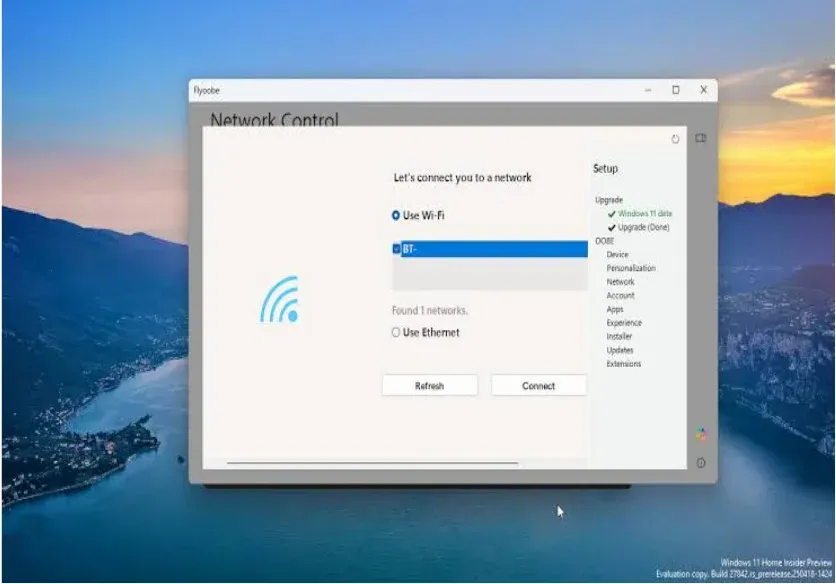
FlyOOBE is a Windows setup assistant designed to give users additional control over the Windows installation and first-run experience.
The name OOBE refers to Out-of-Box Experience, the setup process Windows runs when a newly configured PC is started for the first time. Microsoft describes OOBE as the first-boot experience where Windows performs tasks needed to configure the system before the user begins normal desktop use.
FlyOOBE expands on this concept by providing setup customization and upgrade-related tools in one application.
The project is also the successor to Flyby11, which originally focused primarily on helping users upgrade Windows 10 systems to Windows 11.
Key Features of FlyOOBE
Windows 10 to Windows 11 Upgrade
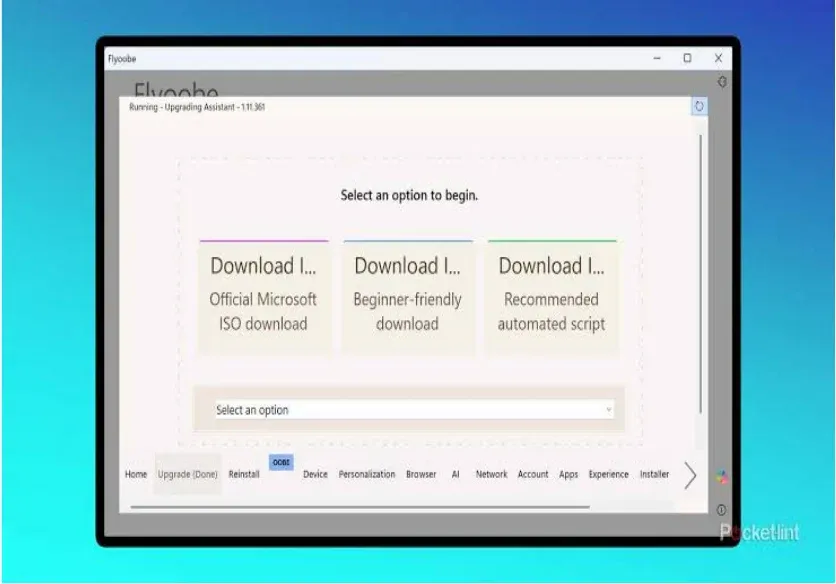
FlyOOBE includes an integrated Windows 10-to-Windows 11 upgrade path. This makes it more than a simple OOBE customization utility.
OOBE Customization
The application provides additional controls for customizing parts of the Windows setup experience.
Windows Tweaks
FlyOOBE includes various Windows configuration and personalization options that can help users adjust their system after or during setup.
Debloat Tools
The project includes tools for managing unwanted applications and components. Users should review each option carefully before removing Windows components.
Setup Extensions
FlyOOBE supports scriptable setup extensions, allowing more advanced users to customize aspects of their Windows setup workflow.
Personalization
The current project includes Windows personalization and tweak-related functionality, giving users additional control over the initial system configuration.
Understanding Windows OOBE
OOBE stands for Out-of-Box Experience. It is the Windows setup process that occurs when a newly installed or configured system is started.
During OOBE, Windows can guide users through different setup tasks before reaching the normal Windows desktop. Microsoft documentation explains that OOBE occurs during the first-boot experience and is processed before the user begins normal Windows use.
FlyOOBE is designed for users who want more control over this setup process instead of relying entirely on the default configuration.
How FlyOOBE Works
FlyOOBE combines several Windows setup-related functions into a single toolkit.
Depending on the current release, you can use it for tasks such as:
Windows upgrade preparation
OOBE customization
Windows personalization
System tweaks
Debloat-related configuration
Setup extensions
Additional configuration workflows
The exact options can change between releases, so always review the documentation and release notes for the version you are using.
How to Download FlyOOBE
The safest way to download FlyOOBE is through the project's official GitHub release page.
Follow these general steps:
Open the official FlyOOBE GitHub repository.
Go to the Releases section.
Review the latest stable release.
Check the release notes and available files.
Download the appropriate release package.
Verify that the file comes from the official project repository.
Extract the package if required.
Follow the project's instructions before running the application.
The project's release information specifically advises users to download FlyOOBE from its official GitHub repository.
How to Install FlyOOBE
FlyOOBE can be distributed as a portable application rather than requiring a traditional Windows installation wizard. Current third-party documentation describes downloading the package, extracting it, and running the executable with appropriate permissions.
A typical process is:
Step 1: Download the Release
Obtain the current release package from the official project repository.
Step 2: Extract the Files
If the download is provided as an archive, extract it to a suitable folder.
Step 3: Run FlyOOBE
Launch the appropriate FlyOOBE executable according to the project's instructions.
Step 4: Review Permissions
Some Windows configuration operations may require administrator privileges.
Step 5: Choose Your Options
Review the available setup, upgrade, personalization, and configuration options before applying changes.
How to Use FlyOOBE
FlyOOBE is intended for both Windows enthusiasts and more advanced users who want greater control over setup.
A basic workflow is:
Start FlyOOBE.
Review the available sections.
Select the task you want to perform.
Read the description of each option.
Apply only the changes you understand.
Restart Windows if required.
Verify that the desired configuration has been applied.
Avoid selecting large numbers of system modifications without understanding their purpose.
FlyOOBE System Requirements
Current third-party documentation lists support for Windows 10 version 1809 or later and Windows 11, along with Windows Server 2019 or newer. It also lists at least 50 MB of free storage, administrator rights, and .NET Framework 4.8 or later.
Requirement | General Requirement |
|---|---|
Operating System | Windows 10 1809+ or Windows 11 |
Server | Windows Server 2019+ where supported |
Storage | At least 50 MB listed by current documentation |
Framework | .NET Framework 4.8 or later |
Permissions | Administrator privileges may be required |
Internet | May be useful for updates and online functions |
Because requirements can change, verify the current release documentation before installation.
Is FlyOOBE Free?
Yes, FlyOOBE is available as a free download from its public project repository. The official GitHub releases provide downloadable builds without requiring users to purchase the application.
However, free software does not mean that every Windows-related function is free of other licensing requirements. For example, installing or upgrading Windows still involves Microsoft's own licensing and activation rules.
Is FlyOOBE Safe?
FlyOOBE should be downloaded from the official project repository rather than random software-download websites.
This is particularly important because the project's release information has warned users about unrelated websites using similar FlyOOBE or Flyby11 names and recommends obtaining the software from the official GitHub repository.
For additional safety:
Download from the official repository.
Check release information before running a file.
Keep Windows security features enabled.
Avoid modified or pre-configured builds.
Create a backup before significant system changes.
Review scripts and advanced configuration options carefully.
FlyOOBE and Windows Privacy
Windows setup includes several privacy and configuration decisions. A setup customization tool can make some of these options easier to review.
However, users should understand what each setting does before changing it. Disabling a Windows component may affect another feature or future system behavior.
Instead of applying every available tweak, make targeted changes based on your actual requirements.
FlyOOBE for Windows 11 Upgrades
One of FlyOOBE's notable functions is its integrated Windows 10-to-Windows 11 upgrade path. The project originated from Flyby11, which focused on helping users deal with Windows 11 installation restrictions. FlyOOBE now combines that upgrade functionality with a broader setup toolkit.
Users considering an upgrade should still check Microsoft's current Windows 11 requirements and understand the implications of installing Windows on hardware that may not meet Microsoft's supported configuration.
Always back up important data before attempting an operating-system upgrade.
Common FlyOOBE Problems
FlyOOBE Does Not Start
Check whether the downloaded package is complete and whether your Windows version is supported. Running the application with appropriate permissions may also be necessary.
Missing Framework
If the application reports a missing .NET component, check the project's current requirements and install the required supported framework from a trusted Microsoft source.
Windows Upgrade Problems
Windows upgrades can fail because of hardware, drivers, storage, compatibility, or existing system configuration. Check the release documentation and Windows error information before retrying.
Changes Are Not Applied
Some configuration changes may require administrator permissions or a Windows restart. Check the relevant option's instructions before making additional changes.
Antivirus Warning
Security software can occasionally flag system configuration utilities because they interact with Windows components. Do not automatically disable security protection. Instead, verify the file's source and investigate the detection before proceeding.
FlyOOBE After Windows Updates
Windows updates can change system components and installation behavior. A FlyOOBE release that worked with one Windows build may require an update for another.
Before using the application after a major Windows update:
Check the latest FlyOOBE release.
Read the changelog.
Confirm Windows compatibility.
Back up important files.
Avoid applying unnecessary system tweaks.
The official release page provides the latest project updates and version information.
FlyOOBE Alternatives
If you need Windows configuration or customization tools but FlyOOBE does not meet your requirements, several alternatives exist.
Windows built-in settings are the safest starting point for standard configuration tasks.
O&O ShutUp10++ focuses on Windows privacy-related configuration.
Rufus is useful for creating bootable Windows installation media and provides certain Windows setup options during media creation.
Windows configuration scripts and utilities can also provide advanced control, although they should be reviewed carefully before execution.
The best option depends on whether your goal is Windows installation, privacy configuration, debloating, or general personalization.
Tips for Using FlyOOBE
For a smoother experience, keep these recommendations in mind:
Download only from the official project repository.
Back up important files before upgrading Windows.
Create a restore point when appropriate.
Read the description of each tweak.
Avoid removing components you may need later.
Keep FlyOOBE updated.
Check Windows compatibility before major upgrades.
Do not use unofficial modified builds.
Keep recovery media available for important systems.
Frequently Asked Questions
Is FlyOOBE free to download?
Yes. FlyOOBE is distributed as a free download through its public GitHub project.
What is FlyOOBE used for?
FlyOOBE is a Windows setup and upgrade toolkit that provides OOBE customization, Windows tweaks, debloat-related tools, personalization options, and an integrated Windows 10-to-11 upgrade path.
Does FlyOOBE work with Windows 11?
Yes. FlyOOBE is designed around Windows setup and Windows 11 upgrade workflows. Check the current release information for supported builds.
Is FlyOOBE the same as Flyby11?
FlyOOBE evolved from Flyby11. The current project combines the earlier upgrade functionality with a broader OOBE and Windows configuration toolkit.
Is FlyOOBE safe?
Download it from the official project repository and avoid unofficial copies. The project itself has warned users about unrelated websites using similar names.
Does FlyOOBE require administrator access?
Some Windows setup and configuration operations require elevated permissions. Current documentation lists administrator rights among its requirements.
Can FlyOOBE upgrade Windows 10 to Windows 11?
The current project includes an integrated Windows 10-to-Windows 11 upgrade path.
Final Thoughts
FlyOOBE has evolved from the original Flyby11 upgrade utility into a broader Windows setup and OOBE toolkit. It combines Windows 10-to-11 upgrade functionality with setup customization, tweaks, personalization, debloat-related tools, and scriptable extensions.
For anyone searching for a FlyOOBE free download, the safest approach is to use the official GitHub release repository and check the latest version before running it. Because the application can make significant Windows configuration changes, users should back up important data and understand each option before applying it.