DefenderUI Free Download – Features, Review, System Requirements & Installation Guide
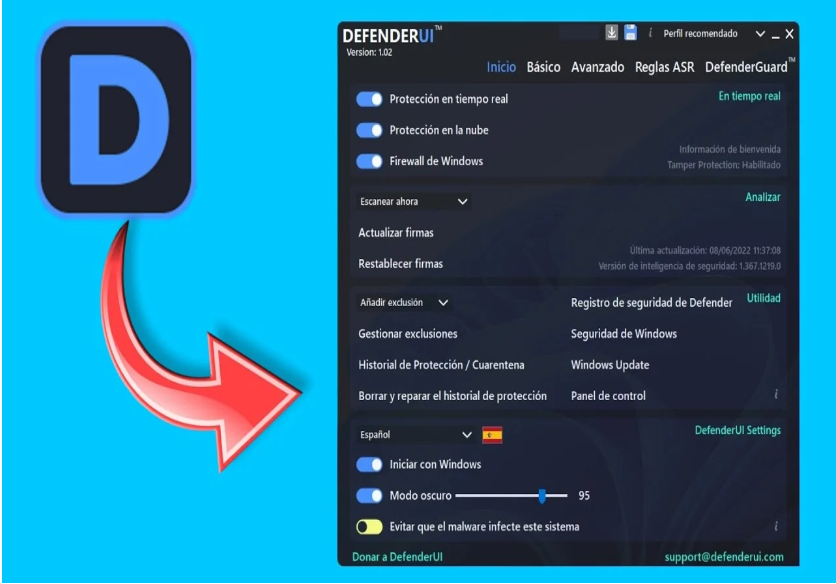
DefenderUI is a Windows utility designed to make Microsoft Defender easier to configure and manage. Developed by VoodooSoft, it provides a more accessible interface for adjusting built-in Windows security settings, exploring advanced protection options, and applying predefined security profiles.
Microsoft Defender already includes several powerful security features, but some of its configuration options are spread across Windows Security, Group Policy, and other administrative tools. DefenderUI brings many of these controls together in a convenient interface, helping users manage protection settings without navigating multiple Windows menus.
The application is useful for home users, IT professionals, and administrators who want more control over Microsoft Defender. Its features include security profiles, basic and advanced protection settings, Attack Surface Reduction (ASR) rules, exclusion management, and additional configuration tools. An optional Pro edition provides further application-control and sandboxing capabilities.
If you are searching for DefenderUI free download, the developer offers a free edition compatible with Windows 10 and Windows 11. This guide covers its features, Free and Pro editions, system requirements, installation process, security considerations, and alternatives.
What Is DefenderUI?
DefenderUI is a configuration utility for Microsoft Defender Antivirus. It provides an organized graphical interface for accessing and managing security settings that are already part of the Windows security ecosystem.
Instead of replacing Microsoft Defender, DefenderUI works alongside it. Microsoft Defender remains responsible for antivirus scanning and protection, while DefenderUI makes selected configuration options easier to access.
The software is developed by VoodooSoft, the company associated with VoodooShield and CyberLock security products.
DefenderUI can be useful for:
Home users who want more control over Windows security.
IT professionals managing Windows computers.
System administrators configuring security settings.
Advanced users interested in Defender's additional protection features.
Users who want to review and adjust security profiles.
Small businesses that need a more convenient configuration workflow.
Its main purpose is to simplify access to Microsoft Defender features without requiring users to manually locate every setting.
Key Features of DefenderUI
1. User-Friendly Interface
One of DefenderUI's main advantages is its organized interface.
Windows includes many security settings, but users may need to navigate several menus to find specific controls. DefenderUI groups supported options into convenient sections.
Its interface helps users:
Access Microsoft Defender settings.
Review protection options.
Manage security profiles.
Explore advanced configuration controls.
Find supported security tools more easily.
This can make routine configuration more convenient, particularly for users who are unfamiliar with Windows security administration.
2. Preconfigured Security Profiles
DefenderUI includes predefined security profiles that allow users to apply groups of protection settings.
The available profiles are designed for different security preferences and levels of configuration.
Common profile options include:
Default Profile
This profile is intended to provide a starting point based on standard Microsoft Defender settings.
Interactive Profile
The Interactive profile provides a different configuration approach for users who prefer more involvement in security decisions.
Recommended Profile
The Recommended profile offers a balanced configuration intended to make useful Defender protections accessible without requiring users to adjust every setting individually.
Aggressive Profile
The Aggressive profile is intended for users who want stricter security configuration. Some settings may affect application behavior or compatibility, so users should review the configuration before applying it.
Profiles are convenient, but they should not be treated as universal security guarantees. The best configuration depends on the computer, applications, and user's requirements.
3. Basic Microsoft Defender Protection Settings
DefenderUI provides convenient access to supported Microsoft Defender protection settings.
Depending on the Windows version and available configuration, users can manage or review options such as:
Real-time protection.
Cloud-delivered protection.
Automatic sample submission.
Potentially unwanted application protection.
Related Microsoft Defender security controls.
Real-time protection helps monitor files and applications for malicious activity. Cloud-delivered protection can use Microsoft's cloud intelligence to improve threat detection.
Users should generally keep important protection features enabled unless they have a specific, well-understood reason to change them.
4. Advanced Security Configuration
Microsoft Defender includes advanced configuration options that may be difficult for ordinary users to locate.
DefenderUI provides a more convenient way to access selected advanced settings.
These controls can help experienced users customize the security behavior of their Windows computers.
Advanced configuration should be approached carefully. Changing the wrong setting may reduce protection or interfere with an application or workflow.
5. Attack Surface Reduction (ASR) Rules
Attack Surface Reduction rules are Microsoft Defender security controls designed to reduce common ways attackers can exploit applications and operating-system features.
DefenderUI provides an interface for managing supported ASR rules.
These rules can help restrict potentially risky behavior, including certain actions involving Office applications, scripts, and executable content.
Depending on the Windows edition and configuration, users may be able to review and configure supported rules.
ASR settings can be useful for advanced users and administrators who want to strengthen Windows security. However, strict rules may affect legitimate business applications, so test configurations before applying them broadly.
6. Microsoft Defender Exclusion Management
Microsoft Defender exclusions allow specific files, folders, processes, or other supported items to be excluded from certain scanning activities.
DefenderUI makes exclusion management more accessible by providing controls for reviewing and configuring supported exclusions.
This can be useful when a legitimate application is incorrectly detected or when a specific administrative requirement makes an exclusion necessary.
However, exclusions should be used sparingly.
Adding an unsafe file or an entire folder to the exclusion list can create a security weakness because Microsoft Defender may no longer scan that location in the same way.
Before adding an exclusion:
Confirm that the file is legitimate.
Verify its source.
Avoid excluding broad system folders.
Remove unnecessary exclusions.
Keep the list as small as possible.
7. DefenderGuard
DefenderUI includes a feature called DefenderGuard, which provides additional controls related to Microsoft Defender configuration and protection.
It is intended to complement the application's other management options.
Users interested in this feature should consult the current developer documentation to understand which protections and settings are available in their installed release.
Do not assume that DefenderGuard replaces Microsoft Defender or provides an independent antivirus engine.
8. Custom Security Profiles
DefenderUI supports custom profile workflows for users who want to reuse their preferred security configurations.
Custom profiles can be helpful when the standard profiles do not match a particular computer's requirements.
Possible uses include:
Applying a preferred configuration.
Maintaining consistent settings.
Reusing configurations across computers.
Managing security preferences for different environments.
The exact profile options depend on the installed version.
9. Command-Line Management
DefenderUI also provides command-line installation and management options for supported administrative workflows.
This is particularly useful for IT professionals and organizations that need to deploy software across multiple Windows computers.
Command-line capabilities can help administrators:
Automate supported installation tasks.
Perform silent installation.
Simplify deployment workflows.
Manage installations in larger environments.
Administrators should refer to the developer's documentation for the correct commands and deployment requirements.
DefenderUI Pro Features
In addition to the free edition, VoodooSoft offers DefenderUI Pro with additional application-control and security-management capabilities.
The Pro edition is intended for users and organizations that need more advanced protection workflows.
Its advertised additional capabilities include:
1. Windows Defender Application Control (WDAC)
WDAC is a Microsoft security technology that helps control which applications and code are allowed to run on a Windows system.
DefenderUI Pro provides tools designed to simplify certain WDAC configuration and management tasks.
2. WDAC Training Mode
Training Mode is intended to help users develop application-control policies while observing application activity.
This can help administrators understand which applications need to be permitted before enforcing stricter policies.
3. Custom Policy Creation
DefenderUI Pro includes tools for building customized application-control policies.
These features are aimed primarily at advanced users and administrators who need more control over software execution.
4. Windows Sandbox Integration
The Pro edition advertises integration with Windows Sandbox for running untrusted files in an isolated environment.
Windows Sandbox availability depends on supported Windows editions and system requirements.
5. Sandboxed Email Links
DefenderUI Pro also advertises a workflow for opening supported email-client links through Windows Sandbox.
This is intended to add an additional isolation layer when interacting with potentially risky links.
6. WhitelistCloud Scanning
WhitelistCloud is another advertised Pro capability intended to support application and file assessment workflows.
Users should consult the current developer documentation for details about its operation and availability.
Important: Pro features, licensing conditions, and availability may change. Check the official product page before purchasing or deploying the Pro edition.
What's New in DefenderUI?
The developer's CyberLock product page currently identifies DefenderUI version 2.10.
The product is described as a tool that improves access to Microsoft Defender settings and provides additional security configuration options.
The developer also advertises improvements and features in the Pro edition, including WDAC management, Training Mode, automated policy creation, Windows Sandbox integration, and WhitelistCloud scanning.
Because different pages and distribution channels may display different version numbers, check the official download page and the version shown by the installer before installing an update.
DefenderUI Free Download – Free vs. Pro
DefenderUI is available in a free edition, while DefenderUI Pro provides additional security-management capabilities.
Understanding the differences helps users choose the appropriate version.
Feature | DefenderUI Free | DefenderUI Pro |
|---|---|---|
Price | Free | Check official licensing |
Microsoft Defender interface | Yes | Yes |
Security profiles | Yes | Yes |
Basic protection settings | Yes | Yes |
Advanced Defender configuration | Yes | Yes |
ASR rule management | Supported | Supported |
Exclusion management | Supported | Supported |
WDAC Training Mode | No | Yes |
Custom WDAC policies | No | Yes |
Windows Sandbox integration | No | Yes |
Sandboxed email links | No | Yes |
WhitelistCloud scan | No | Yes |
The free edition should be sufficient for many home users who want a simpler way to manage Microsoft Defender.
DefenderUI Pro is more relevant to advanced users and organizations interested in application-control policies and additional security workflows.
Is DefenderUI Completely Free?
The developer describes DefenderUI Free as truly free and compatible with Windows 10 and Windows 11.
The Pro edition is a separate offering. Its current pricing and licensing conditions should be checked on the official website because older promotional statements may no longer apply.
Official Download
Download DefenderUI from the developer's official website:
https://www.cyberlock.global/defenderui.aspx
Avoid modified installers and unofficial activation tools. Security utilities should always be obtained from trusted sources.
DefenderUI System Requirements
DefenderUI is designed for Windows computers that use Microsoft Defender.
Supported Operating Systems
The developer lists compatibility with:
Windows 10.
Windows 11.
Additional Requirements
Users should also consider:
A supported Windows installation.
Microsoft Defender Antivirus available and functioning.
Administrator permissions for settings that require elevated access.
Internet access for cloud-based security features.
Compatible Windows features for advanced Pro functionality.
Some advanced features depend on the Windows edition and configuration. For example, Windows Sandbox is not available on every Windows edition.
Before applying advanced settings, make sure Windows and Microsoft Defender are updated.
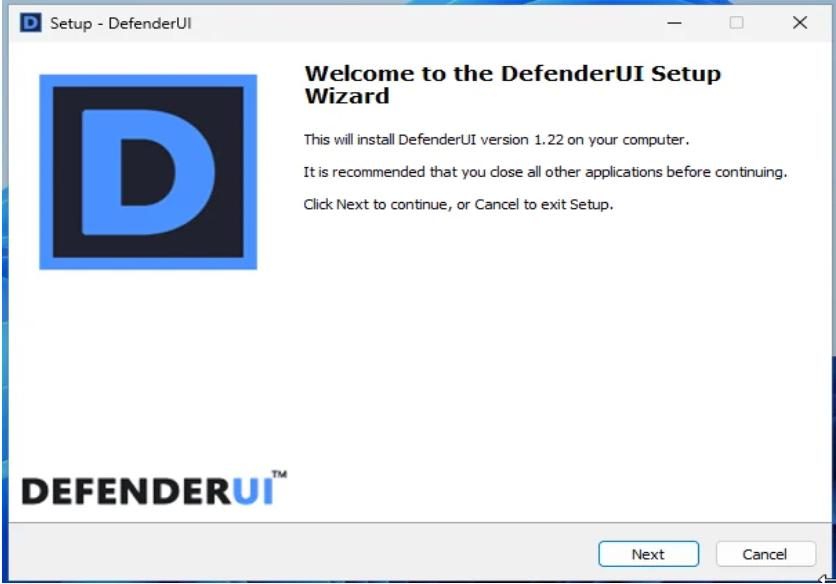
How to Download and Install DefenderUI
Follow these steps to install DefenderUI safely:
Open the official DefenderUI website.
Find the DefenderUI Free download option.
Select the free installer.
Download the setup file.
Locate the downloaded installer.
Run the setup file with the appropriate Windows permissions.
Follow the installation instructions.
Complete the setup process.
Launch DefenderUI.
Review the available security profiles and configuration options.
After installation, check that Microsoft Defender is working correctly before changing advanced settings.
How to Use DefenderUI
DefenderUI is designed to make Microsoft Defender configuration easier. Follow these basic steps to get started.
Step 1: Launch DefenderUI
Open DefenderUI from the Windows Start menu or its installed shortcut.
Step 2: Review the Available Profiles
Explore the predefined security profiles and read their descriptions.
If you are unsure which settings to use, begin with a balanced configuration rather than immediately selecting the most restrictive option.
Step 3: Select a Security Profile
Choose the profile that matches your security requirements.
Remember that applying a profile may change several Defender settings at once.
Step 4: Explore Basic Settings
Review available options for real-time protection, cloud-delivered protection, and other supported controls.
Avoid disabling essential protections without a specific reason.
Step 5: Review Advanced Settings
Experienced users can explore advanced configuration options and supported ASR rules.
If you are configuring a work computer, consider testing changes before applying them to other devices.
Step 6: Manage Exclusions Carefully
Review existing exclusions and remove entries that are no longer necessary.
Only add exclusions for files or folders that you have verified as safe.
Step 7: Check Windows Security
After applying changes, open Windows Security and confirm that Microsoft Defender reports the expected protection status.
If an application stops working or protection appears disabled, review the changes and restore the previous configuration if necessary.
Is DefenderUI Safe to Use?
DefenderUI is developed by VoodooSoft and is intended to provide a more convenient interface for configuring Microsoft Defender.
It does not replace Microsoft's antivirus engine. Microsoft Defender remains responsible for the underlying antivirus protection.
As with any security configuration utility, users should be careful when changing settings.
For safer use:
Download the installer from the official developer website.
Keep Windows and Microsoft Defender updated.
Use a balanced security profile unless you understand the implications of stricter settings.
Avoid disabling real-time protection unnecessarily.
Do not add unverified files to exclusions.
Test advanced settings before deploying them across multiple computers.
Keep a record of important configuration changes.
DefenderUI can make security settings easier to access, but the effectiveness of the resulting configuration still depends on the settings selected and the overall security practices of the user.
Pros and Cons of DefenderUI
Pros
Free edition available.
Compatible with Windows 10 and Windows 11.
Makes Microsoft Defender easier to configure.
Provides predefined security profiles.
Offers access to advanced configuration settings.
Includes supported ASR rule management.
Provides exclusion-management controls.
Supports custom profile workflows.
Offers additional Pro security-management tools.
Useful for home users and IT administrators.
Cons
Windows-only application.
Depends on Microsoft Defender and supported Windows features.
Advanced settings may confuse inexperienced users.
Some features are exclusive to Pro.
Incorrect configuration can reduce security.
Certain advanced features depend on Windows edition and system configuration.
Best Alternatives to DefenderUI
If DefenderUI does not meet your requirements, consider these alternatives.
1. ConfigureDefender
ConfigureDefender is a Windows utility that provides an interface for adjusting Microsoft Defender settings and security levels. It is useful for users who want more direct control over Defender configuration.
2. Microsoft Windows Security
Windows Security is built into Windows and provides access to antivirus, firewall, account protection, and other security features.
It is a suitable starting point for users who do not need an additional configuration utility.
3. PowerShell
PowerShell provides command-line tools for managing supported Microsoft Defender settings.
It is particularly useful for administrators and advanced users who want to automate configuration tasks.
4. Group Policy
Group Policy provides centralized configuration options on supported Windows editions.
It can be useful in managed business environments where administrators need consistent security policies.
5. Microsoft Defender for Endpoint
Microsoft Defender for Endpoint is an enterprise security platform with advanced threat protection and management capabilities.
It is designed for organizational environments rather than ordinary home-user configuration.
6. VoodooShield
VoodooShield is another security product from VoodooSoft. It focuses on application execution control and additional security workflows rather than simply providing a graphical interface for Microsoft Defender settings.
Frequently Asked Questions
Is DefenderUI free to download?
Yes. The developer offers DefenderUI Free at no cost. An optional Pro edition provides additional application-control and security-management features.
What is DefenderUI used for?
DefenderUI provides a convenient interface for managing and configuring supported Microsoft Defender settings on Windows computers.
Does DefenderUI work on Windows 11?
Yes. The developer lists Windows 11 and Windows 10 as supported operating systems.
Is DefenderUI an antivirus?
No. DefenderUI is a configuration utility, not a separate antivirus engine. Microsoft Defender provides the underlying antivirus protection.
What is the difference between DefenderUI Free and Pro?
The free edition provides Microsoft Defender management features and security profiles. Pro adds capabilities such as WDAC Training Mode, custom policy creation, Windows Sandbox integration, and WhitelistCloud scanning.
Does DefenderUI disable Microsoft Defender?
DefenderUI is designed to manage Microsoft Defender settings. Its purpose is not to replace the antivirus engine. Users should review configuration changes carefully and keep essential protection enabled.
What are ASR rules?
Attack Surface Reduction rules are Microsoft Defender security controls designed to reduce potentially risky behaviors and common attack techniques.
Can DefenderUI manage security exclusions?
Yes. DefenderUI provides controls for managing supported Microsoft Defender exclusions. Users should avoid adding unnecessary or unverified exclusions.
Is DefenderUI safe for beginners?
The interface can make basic configuration easier, but advanced security settings may affect protection and application compatibility. Beginners should use a balanced profile and avoid changing unfamiliar options.
Does DefenderUI Pro support Windows Sandbox?
The developer advertises Windows Sandbox integration as a Pro feature. Availability depends on the Windows edition and system configuration.
What is the latest version of DefenderUI?
The developer's CyberLock product page identifies version 2.10. Always check the official download page for the latest installer.
Conclusion
DefenderUI is a useful Windows utility for people who want more convenient access to Microsoft Defender settings. Its organized interface, predefined security profiles, advanced configuration options, ASR rule management, and exclusion controls make Windows security easier to manage.
The free edition is a practical option for home users who want additional control over Microsoft's built-in antivirus. DefenderUI Pro extends the functionality with WDAC policy tools, Training Mode, Windows Sandbox integration, and other advanced features for users with more demanding requirements.
Because DefenderUI changes security configuration rather than replacing the antivirus engine, users should understand the effects of the settings they apply. Start with a suitable profile, keep Microsoft Defender updated, and avoid disabling essential protections.
If you want a more accessible way to manage Windows security, download DefenderUI from the official VoodooSoft website and explore the free edition.