Microsoft Excel with AI Free Download – Features, Installation & Guide
Microsoft Excel has long been one of the most widely used spreadsheet applications for organizing data, creating calculations, building reports, and analyzing information. With the addition of AI-powered capabilities through Microsoft 365 Copilot, Excel can now assist users with tasks that traditionally required more manual work.
If you are searching for a Microsoft Excel with AI free download, it is important to understand that Excel and its AI features are not necessarily provided under the same licensing terms. Excel is available on the web at no cost with a Microsoft account, while access to Copilot and advanced AI functionality depends on the applicable Microsoft 365 subscription, account, platform, and current availability.
This guide explains Microsoft Excel with AI, its major features, legitimate access options, installation process, practical use cases, and important licensing considerations.
What Is Microsoft Excel with AI?
Microsoft Excel with AI refers primarily to Excel's integration with Microsoft 365 Copilot, Microsoft's AI assistant for productivity applications.
Copilot in Excel can help users build and edit workbooks, analyze information, generate formulas, create charts and PivotTables, apply formatting, and perform other spreadsheet tasks through natural-language instructions.
Instead of manually figuring out every step, you can describe what you want to accomplish. For example, you might ask Copilot to summarize a dataset, identify trends, create a chart, or suggest a formula.
Microsoft provides several Copilot modes in Excel, including edit, plan, and chat. Edit mode can make changes to a workbook, plan mode can propose an approach before making changes, and chat mode can provide analysis without directly modifying the workbook.
Microsoft Excel with AI Free Download
When users search for Microsoft Excel with AI free download, they may be looking for one of several things:
Free Excel access through the web
A Microsoft 365 trial
Desktop Excel with an eligible subscription
Excel with Copilot AI features
A way to test AI-powered spreadsheet tools
Microsoft offers Excel for the web, but AI functionality has separate availability and licensing requirements. Microsoft currently lists qualifying Microsoft 365 Personal or Family subscriptions with an AI credits plan, Microsoft 365 Premium, and eligible commercial Microsoft Copilot or Microsoft 365 accounts among the ways Copilot in Excel can be accessed.
Therefore, downloading Excel does not automatically mean that every Copilot feature will be available.
For safety, always use Microsoft's official software and account channels rather than modified Office installers, unauthorized activation tools, or cracked versions.
Key AI Features in Microsoft Excel
AI-Powered Data Analysis
One of the most useful applications of AI in Excel is data analysis.
Copilot can help users identify patterns, trends, and unusual values in supported spreadsheet data. Microsoft also documents AI-assisted data analysis that can answer questions about workbook data without requiring users to manually write every formula or perform every calculation.
This can be useful for:
Sales analysis
Budget reviews
Business reports
Performance tracking
Customer datasets
Inventory information
Trend analysis
AI-generated results should still be reviewed before being used for important decisions.
AI Formula Generation
Excel formulas can become complicated when a workbook contains multiple calculations and conditions.
With Copilot, users can describe what they want to calculate in natural language. The AI can help generate or explain formulas based on the available data.
For example, instead of manually constructing a complicated formula, you can describe the calculation you need and ask Copilot for assistance.
Microsoft specifically lists formula generation among Copilot's Excel capabilities.
Data Cleaning
Large spreadsheets often contain inconsistent formatting, duplicate records, or other data-quality issues.
Microsoft's AI in Excel documentation describes using Copilot to help detect and correct inconsistencies, standardize data, and remove duplicate entries.
This can reduce the amount of repetitive cleanup work required before analyzing a dataset.
AI-Powered Charts
Charts make spreadsheet information easier to understand, but selecting the appropriate visualization and configuring it manually can take time.
Copilot can help create charts from spreadsheet data based on natural-language requests. Microsoft also documents AI-assisted visualization through charts and PivotTables.
You can use this capability to turn numerical data into more understandable visual reports.
PivotTables and Summaries
PivotTables are useful for analyzing large amounts of structured information.
Copilot can assist with creating and working with PivotTables, helping users summarize data and explore different views of a dataset.
This is particularly helpful for users who understand the information they want but may not know the exact Excel steps required to build the analysis manually.
AI-Assisted Formatting
Formatting a large spreadsheet can be time-consuming.
Copilot can assist with workbook formatting, including areas such as styles, conditional formatting, borders, and data presentation. Microsoft documents these editing capabilities as part of Copilot's Excel functionality.
Users can describe the desired result and then review the changes before keeping them.
Workbook Editing
Copilot can go beyond answering questions.
In edit mode, it can make changes directly to supported workbook content. Microsoft says Copilot can add, rename, and delete worksheets, modify cell values and ranges, apply formatting, and manage workbook layout.
This makes AI more useful for multi-step spreadsheet tasks rather than simple question-and-answer interactions.
Benefits of Using Excel with AI
Saves Time
AI assistance can reduce the amount of manual work required for repetitive spreadsheet tasks.
Easier Data Analysis
Users can ask questions about supported datasets using natural language rather than manually building every analysis.
Helps With Complex Formulas
Copilot can assist with creating and explaining formulas, which can be useful when working with unfamiliar Excel functions.
Faster Reporting
Charts, summaries, formatting, and data analysis can be created more efficiently.
Useful for Beginners
Users who are not advanced Excel experts can describe what they want and use AI guidance to explore possible solutions.
Supports Advanced Workflows
Experienced Excel users can also use Copilot for larger tasks such as reshaping data, merging sheets, and creating reports.
Microsoft Excel Free vs Excel with AI
Feature | Excel for the Web | Excel with Eligible AI/Copilot |
|---|---|---|
Create spreadsheets | Yes | Yes |
Basic spreadsheet editing | Yes | Yes |
Online collaboration | Yes | Yes |
Formulas | Yes | Yes |
Data analysis | Available | AI-assisted |
AI formula assistance | Limited/availability varies | Yes |
AI insights | Limited/availability varies | Yes |
AI-generated charts | Limited/availability varies | Yes |
Copilot workbook editing | No/availability varies | Yes |
Desktop Excel | Depends on license | Included with eligible plans |
Subscription | Free web access available | Required for eligible AI access |
Exact features and limits can vary according to the Microsoft account, subscription, platform, and current Microsoft 365 offering.
System Requirements and Compatibility
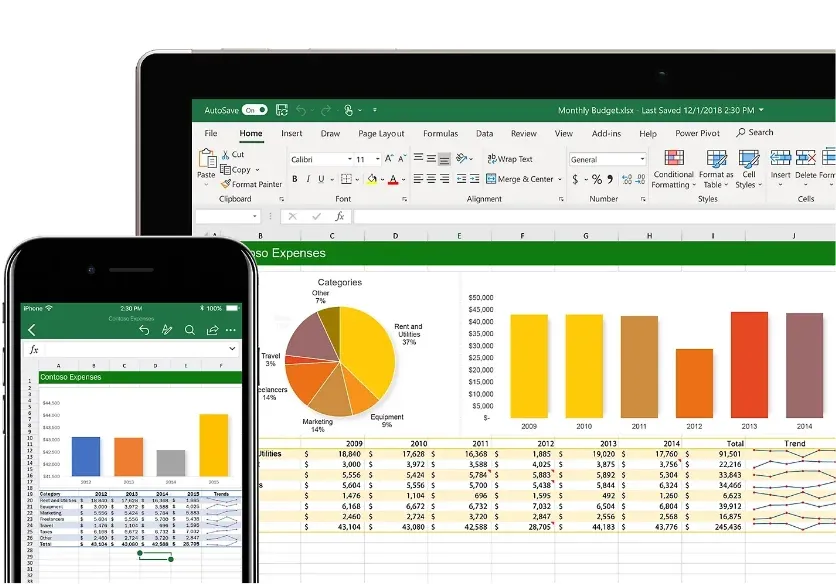
Microsoft states that Copilot in Excel is available across multiple platforms, including:
Windows
macOS
Excel for the web
iPad
iPhone
Android
However, supported Copilot modes vary by platform. Windows, Mac, and web support edit, chat, and plan modes, while mobile platforms have more limited mode availability.
You should also maintain an up-to-date version of Microsoft 365 and use a compatible Microsoft account.
Some Copilot workflows have additional requirements. For example, Microsoft states that Copilot in Excel requires AutoSave to be enabled, with the workbook saved to OneDrive for certain experiences.
How to Download or Access Microsoft Excel with AI
Step 1: Choose Your Excel Version
Decide whether you need free Excel for the web or desktop Excel through a Microsoft 365 subscription.
Step 2: Use a Microsoft Account
Sign in with the Microsoft account associated with your Excel or Microsoft 365 access.
Step 3: Install Microsoft 365 if Required
If your subscription includes desktop applications, download the official Microsoft 365 installer and follow Microsoft's installation instructions.
Step 4: Open Excel
Launch Excel and sign in using the appropriate Microsoft account.
Step 5: Check for Copilot
If your account and subscription are eligible, the Copilot option should appear in Excel.
Microsoft notes that the Copilot button can be missing because of licensing, application version, update channel, privacy settings, or organizational configuration.
How to Install Microsoft Excel
For a legitimate desktop installation:
Obtain Microsoft 365 from Microsoft.
Sign in with your Microsoft account.
Download the official installer.
Run the setup program.
Allow the installation to complete.
Open Excel.
Sign in if requested.
Confirm that your subscription is active.
Check for available Copilot functionality.
Avoid third-party Office packages that promise permanent activation or unlocked AI features.
How to Use AI in Excel
Once Copilot is available, using it is relatively straightforward.
Open a Workbook
Start with a supported workbook containing structured data.
Open Copilot
Select the Copilot icon in Excel.
Describe Your Task
Write a natural-language request explaining what you want to accomplish.
For example:
“Summarize the sales data.”
“Find unusual values in this table.”
“Create a chart showing monthly revenue.”
“Explain this formula.”
“Identify trends in these results.”
Review the Response
Read the generated explanation, formula, chart, or proposed changes.
Confirm or Adjust
If the result is not what you expected, provide a more specific instruction or manually adjust the workbook.
Microsoft recommends reviewing and verifying AI-generated output rather than assuming that every result is correct.
Examples of Useful AI Prompts for Excel
Good prompts are specific about the data and desired result.
Data Analysis
“Analyze the sales table and identify the three largest changes between months.”
Formula Help
“Create a formula that calculates the percentage change between the previous and current month.”
Chart Creation
“Create a line chart showing revenue by month.”
Data Cleaning
“Find inconsistent entries in the customer location column and suggest standardized values.”
Summary
“Summarize the key findings from this dataset.”
Microsoft recommends naming columns or ranges and providing enough context to make prompts more useful.
Is Microsoft Excel with AI Free?
The answer depends on what you mean by “free.”
Excel for the web can be used without purchasing the desktop version, but access to Copilot in Excel is subject to Microsoft's licensing and eligibility requirements.
Microsoft currently identifies qualifying Microsoft 365 Personal or Family subscriptions with an AI credits plan, Microsoft 365 Premium, and certain commercial Microsoft Copilot or Microsoft 365 business/enterprise arrangements as eligible paths for Copilot in Excel.
Microsoft also publishes AI-credit and feature limits for consumer Microsoft 365 plans, so availability and usage limits should be checked before choosing a plan.
In other words, free Excel access and free access to all Excel AI features are not the same thing.
Important Change to the Excel COPILOT Function
Users may find older tutorials describing a worksheet function called COPILOT.
Microsoft states that the COPILOT worksheet function was discontinued beginning September 14, 2026. Existing cached results can remain in workbooks, but recalculation of the old function can result in a #NAME? error. Microsoft recommends using Copilot through the Excel pane instead.
This is important when following older Excel AI tutorials published before the change.
Safety, Privacy, and Accuracy
AI can make spreadsheet work easier, but users should not treat AI-generated results as automatically correct.
Verify Calculations
Review important formulas and calculations manually.
Check AI-Generated Insights
AI may misunderstand a dataset or interpret information incorrectly. Microsoft explicitly warns that Copilot-generated results can contain mistakes or inaccuracies.
Protect Sensitive Information
Be careful when working with confidential business, financial, customer, or personal information.
Use Official Microsoft Software
Download Excel and Microsoft 365 applications through legitimate Microsoft channels.
Avoid Cracked Versions
Modified Office installers can create security, stability, licensing, and update problems. They can also contain unwanted or malicious components.
Common Problems and Solutions
Copilot Button Is Missing
Check your Microsoft 365 license, application version, update status, privacy settings, and organizational configuration. Microsoft provides specific troubleshooting steps for missing Copilot functionality.
Copilot Is Available but Cannot Edit
Check the current platform and supported Copilot mode. Some platforms provide chat or plan functionality without the same editing capabilities available on Windows, Mac, and web.
AI Gives an Incorrect Answer
Review the source data, improve your prompt, and verify the generated result manually.
Excel Requires OneDrive
Some Copilot workflows require AutoSave and a workbook stored on OneDrive.
Excel Is Outdated
Install the latest available Microsoft 365 updates and restart Excel.
Alternatives to Microsoft Excel with AI
Users who want spreadsheet and AI functionality can also explore other applications.
Google Sheets
Google Sheets provides browser-based spreadsheet editing and Google's AI-assisted productivity features where available.
LibreOffice Calc
LibreOffice Calc is an open-source spreadsheet application that can be useful for users looking for a desktop alternative.
Zoho Sheet
Zoho Sheet provides online spreadsheet tools and AI-oriented productivity capabilities within the Zoho ecosystem.
WPS Spreadsheet
WPS Office includes spreadsheet functionality and AI features depending on the current edition and plan.
ONLYOFFICE
ONLYOFFICE provides spreadsheet editing tools for desktop and online workflows, with additional integrations and features depending on the deployment.
Feature availability, AI capabilities, and licensing differ between these products, so users should check the current documentation before choosing an alternative.
Frequently Asked Questions
Is Microsoft Excel with AI free?
Excel for the web is available for free, but Copilot and other advanced AI functionality require eligible access depending on the Microsoft 365 plan and account.
Can I use Excel AI without Microsoft 365?
AI availability depends on Microsoft's current licensing and account requirements. Free Excel web access does not automatically provide all Copilot functionality.
What is the AI feature in Excel called?
Microsoft's primary AI assistant inside Excel is Microsoft 365 Copilot.
Can AI create Excel formulas?
Yes. Copilot in Excel can help generate and explain formulas based on natural-language requests and workbook context.
Can Copilot analyze Excel data?
Yes. Microsoft documents Copilot-assisted data analysis for supported structured datasets, including identifying trends and outliers and answering questions about data.
Does Copilot work on Windows and Mac?
Yes. Microsoft currently supports Copilot in Excel on Windows and Mac, as well as the web and mobile platforms, although supported modes differ.
Why can't I see Copilot in Excel?
Possible reasons include an ineligible license, outdated application build, privacy settings, update-channel issues, or organizational restrictions.
Is Microsoft Excel with AI safe?
The official Microsoft version is the appropriate choice. Users should also review AI-generated results, particularly when working with important financial, legal, business, or other sensitive information.
Can I use AI in Excel on mobile?
Copilot availability extends to iPhone and Android, but mobile platforms currently have different supported modes from desktop and web Excel.
Final Thoughts
Microsoft Excel with AI combines traditional spreadsheet functionality with Microsoft 365 Copilot to help users analyze data, generate formulas, create charts, edit worksheets, summarize information, and complete other spreadsheet tasks using natural-language instructions.
For people searching for a Microsoft Excel with AI free download, the key distinction is between free Excel web access and licensed Copilot functionality. Microsoft provides free web-based Excel access, while AI features depend on the user's Microsoft 365 subscription, account, platform, and current eligibility.
For the safest experience, use official Microsoft software, keep Excel updated, verify your license, and carefully review AI-generated calculations and insights before relying on them.